

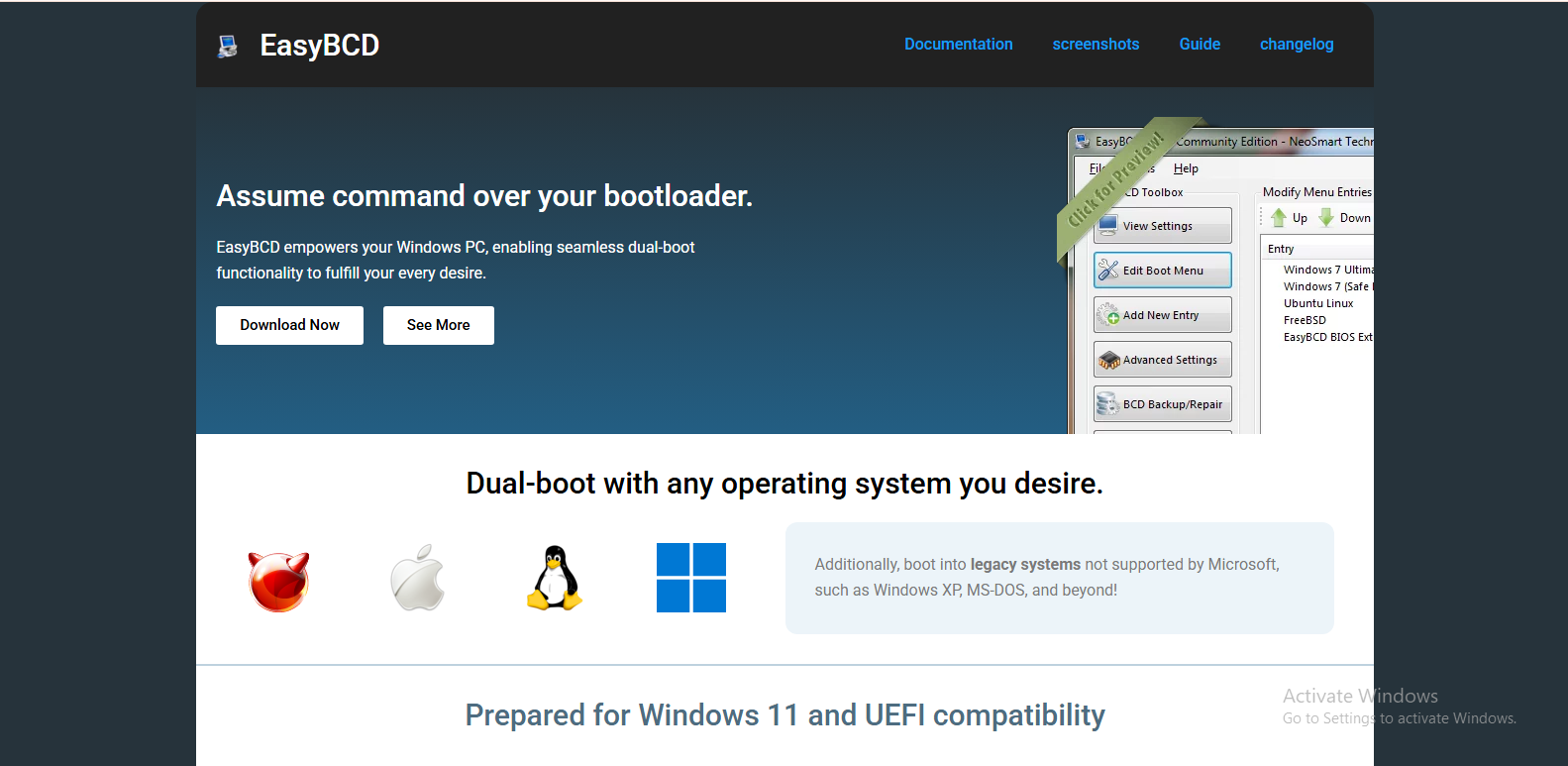
Installing boot management software may sound difficult for beginners, but EasyBCD makes the process simple and user-friendly. Whether you want to manage multiple operating systems, repair boot issues, or customize your Windows boot menu, EasyBCD is one of the most popular tools available. It is designed for Windows users who need better control over their system startup options without dealing with complex command-line tools.
In this guide, you will learn how to install EasyBCD easily on your computer. The process is straightforward, and even beginners can complete it without technical knowledge. By the end of this article, you will understand how to download, install, and start using EasyBCD safely.
What Is EasyBCD?
EasyBCD is a Windows bootloader management tool created by NeoSmart Technologies. It allows users to configure and customize the Windows Boot Configuration Data (BCD). In simple words, it helps you control how your computer starts and which operating system loads during startup.
EasyBCD is commonly used for dual-boot systems where users run Windows alongside Linux or another Windows version. It can also help repair boot errors and create bootable entries for recovery tools.
The software offers a graphical interface, which makes it much easier than editing boot settings manually through Command Prompt.
Why People Use EasyBCD
Many users install EasyBCD because it simplifies boot management tasks. Instead of using advanced system commands, users can control startup settings with just a few clicks.
EasyBCD is useful for creating dual-boot systems. For example, if you want to install Windows 11 and Windows 10 on the same computer, the software can help organize the boot menu.
It is also useful for repairing damaged boot files. Sometimes Windows may fail to start correctly because of corrupted boot settings. EasyBCD can help restore those settings quickly.
Another reason people prefer EasyBCD is its clean and beginner-friendly interface. Even users with limited technical experience can navigate the software comfortably.
System Requirements for EasyBCD
Before installing EasyBCD, make sure your computer meets the basic requirements. The software works on most modern Windows systems.
You need a computer running Windows Vista, Windows 7, Windows 8, Windows 10, or Windows 11. Administrative privileges are required because the software changes system boot settings.
The installation file is lightweight, so you do not need much storage space. A stable internet connection is also recommended for downloading the latest version safely.
Downloading EasyBCD Safely
The first step is downloading the software from the official source. Using trusted websites is important because boot management tools can affect system startup behavior.
Visit the official website of EasyBCD Download Page and choose the version suitable for your needs. There is usually a free version available for non-commercial personal use.
After clicking the download option, the setup file will begin downloading to your computer. Save the installer in an easy-to-find location such as the Downloads folder or Desktop.
Avoid downloading EasyBCD from unofficial websites because modified installers may contain malware or unwanted software.
Preparing Your Computer Before Installation
Before installing EasyBCD, it is a good idea to back up important files. Although the software is generally safe, modifying boot settings always carries some risk.
Close unnecessary programs before starting the installation. This helps avoid interruptions during setup.
You should also ensure that your Windows system is updated. Updated systems usually experience fewer compatibility problems with new software installations.
If you already use another boot management tool, make sure there are no conflicts. Running multiple boot managers at the same time may create startup issues.
How to Install EasyBCD
Once the installer has been downloaded, locate the setup file and double-click it. Windows may display a security prompt asking for permission to run the installer. Click “Yes” to continue.
The EasyBCD installation wizard will open. Follow the on-screen instructions carefully. First, choose your preferred language if the installer provides multiple language options.
Next, read and accept the license agreement. After accepting the terms, select the installation location. Most users can keep the default folder settings without any issues.
Click the install button to begin the setup process. The installation usually takes only a few moments because the software is small in size.
Once the installation is complete, you will see a confirmation message. You can then choose to launch EasyBCD immediately by checking the available option before closing the installer.
Running EasyBCD for the First Time
After installation, open EasyBCD from the desktop shortcut or Start menu. The software may request administrator permission again because it needs system-level access.
When EasyBCD starts, you will see a simple dashboard displaying current boot settings. The main interface includes options for viewing boot entries, adding new operating systems, editing the boot menu, and repairing boot files.
Take some time to explore the interface before making changes. Understanding the available options can help prevent accidental configuration mistakes.
For beginners, it is recommended to avoid advanced settings until you become familiar with how the software works.
Creating a Backup Before Making Changes
One of the smartest things you can do after installing EasyBCD is creating a backup of your current boot configuration.
EasyBCD provides an easy backup and repair section where you can save your existing boot settings. This backup allows you to restore the original configuration if something goes wrong later.
To create a backup, open the Backup/Repair section inside the software and select the backup option. Save the backup file somewhere safe, such as an external drive or cloud storage.
Having a backup gives extra protection when experimenting with dual-boot setups or custom boot entries.
Common Installation Problems and Solutions
Although EasyBCD installation is usually smooth, some users may face small issues during setup.
One common problem is installation failure due to antivirus software. Some security programs may block installation temporarily because EasyBCD modifies system boot settings. If this happens, temporarily disable the antivirus and try again.
Another issue is permission errors. Running the installer as an administrator usually fixes this problem. Right-click the setup file and choose “Run as administrator.”
Sometimes users download an incomplete installer because of unstable internet connections. In this case, deleting the damaged file and downloading it again from the official website can solve the issue.
If EasyBCD does not open after installation, restarting the computer may help refresh system services and drivers.
Is EasyBCD Safe to Use?
EasyBCD is generally considered safe when downloaded from the official source. It has been used by millions of Windows users for boot management tasks.
However, users should still be careful when changing boot settings. Incorrect configurations can cause startup problems. This is why creating backups before making changes is strongly recommended.
Beginners should focus on basic features first and avoid modifying advanced bootloader settings unless they fully understand the process.
Final Thoughts
Installing EasyBCD is a simple process that can make Windows boot management much easier. The software is lightweight, beginner-friendly, and packed with useful features for dual-boot setups and startup repairs.
By downloading the installer from the official website, following the setup wizard carefully, and creating a backup before making changes, you can use EasyBCD safely and effectively.
Whether you want to manage multiple operating systems or repair boot problems, EasyBCD provides an accessible solution without requiring advanced technical skills. For beginners and experienced users alike, it remains one of the best tools for Windows boot configuration management.
